How DNS Works: Attacks, Security Requirements, and an Open-Source Implementation
DNS is the network’s phone book—and one of an attacker’s earliest contact points. Before a user reaches a malicious destination, their device asks for its name. DNS should therefore be designed as a control, visibility, and response layer, not merely as the service that makes the internet work.
This article is not a product recommendation. It begins with why DNS is a critical part of security architecture: how a name becomes an IP address, which attacks are possible along that path, and why those threats create requirements for DNSSEC, encrypted resolution, policy, and visibility. The open-source Technitium DNS Server is used only as a concrete platform on which those requirements can be implemented.
This deployment is not a replacement for a NGFW or EDR. It is, however, a high-impact and low-cost security control for stopping an initial connection to hostile infrastructure, reducing ad and tracking domains, and making DNS activity observable.
What is DNS and how does a query resolve?
DNS, the Domain Name System, translates human-readable names such as www.example.com into the IP addresses used by networks. Before a browser opens a site, a stub resolver asks the operating system to resolve the name. The operating system then asks its configured recursive resolver.
When the answer is not cached, the recursive resolver follows the DNS hierarchy: it asks the root (.) servers for the relevant top-level domain (.com), asks the .com servers for the authoritative servers of example.com, then asks the authoritative server for the actual record. The resolver caches the result for its TTL, allowing later requests to be answered more quickly.
Browser → Operating system → Recursive resolver
                                 │
                 Cache hit? ────┴──── Yes → Answer
                                 │ No
                                 ▼
                     Root → TLD → Authoritative DNS
                                 │
                                 ▼
                      Validate + cache + client answer
The key distinction is that authoritative DNS holds the official records for a domain, while a recursive resolver finds, validates, and stores answers on behalf of clients. The recursive resolver is often the right place for security controls because it observes DNS requests across the network.
What attacks target DNS?
DNS is attractive to attackers because it influences both traffic direction and the first connection decision. Common risks include:
| Attack / risk | How it works | Possible impact |
|---|---|---|
| DNS spoofing / cache poisoning | A resolver is induced to accept a forged answer | Users are redirected to a fake or malicious destination |
| DNS hijacking | A client, router, or DNS setting is changed to use an attacker-controlled resolver | Queries can be observed or manipulated |
| DNS tunneling | Data is encoded into DNS query names | C2 traffic or data exfiltration may be concealed |
| DNS amplification | Small queries with a spoofed source produce large replies | DDoS traffic is generated against the victim |
| Malicious domains / fast flux | Hostile infrastructure frequently changes domains or IPs | Phishing, malware delivery, and beaconing are supported |
| Unauthorized DoH | A client bypasses the organization resolver using external DoH | Policy enforcement and visibility are lost |
A DNS server does not solve every one of these attacks alone. A well-designed resolver does provide an important control point: it can reject invalid answers, block harmful names, surface abnormal query behavior, and make bypassing the DNS layer more difficult.
What security requirements do these threats create?
Turning threats into control requirements makes DNS security easier to reason about:
- Integrity: DNSSEC validation checks that an answer has not been altered.
- Privacy and transport security: DoH or DoT protects queries between the resolver and its upstream.
- Prevention: Block lists and zone rules stop known malicious, unwanted, or policy-violating domains.
- Visibility: Logs, dashboards, and metrics show which client queried what and when.
- Resilience: Cache, multiple upstream resolvers, and a second DNS server preserve resolution during failure.
- Manageability: Allow lists, change records, and testing make false positives reversible.
Architecture: where the DNS control layer sits
Clients use the Technitium server’s LAN address as their DNS resolver. The server first evaluates a request against local policy: allowed and blocked entries, block lists, private zones, and cache. If the request is permitted, it is resolved with DNSSEC validation and forwarded to the selected upstream resolver over encrypted transport.
Client / DHCP
      │  UDP/TCP 53
      ▼
Technitium DNS Server
  ├─ Allowed / Blocked zone & list
  ├─ DNSSEC validation
  ├─ Cache + query log
  └─ DoH / DoT upstream forwarder
      │
      ▼
Internet / authoritative DNS infrastructure
The key advantage is that policy lives at the network boundary rather than solely on endpoints. A client can still bypass the resolver through its own DoH implementation, though. In an enterprise design, restrict direct outbound 53/853 access at the firewall, assess policy for known DoH endpoints, and distribute the intended resolver through DHCP.
DNS security is more than a block list
Treat DNS security as four related controls:
| Control | Value delivered | Important caveat |
|---|---|---|
| DNSSEC validation | Checks DNS data against the signed DNS chain | It provides integrity, not privacy |
| DoH/DoT upstream | Encrypts transport between your resolver and the upstream resolver | Recursive traffic to authoritative servers can still use classic DNS |
| Blocking policy | Stops malicious, unwanted, or policy-violating domains | List quality and exception handling determine user impact |
| Logs and metrics | Supports investigations, tuning, and capacity visibility | Query data can be personal data; retention must be intentional |
A DNS sinkhole is not valuable because it blocks everything. A good DNS control can roll back a false positive, show which client queried a domain, and make an outage fast to diagnose.
Installation: a repeatable Docker starting point
Run the resolver on a dedicated VM, a small Linux host, or a Raspberry Pi. For production, plan a static LAN address, backup strategy, and update window. The following Docker Compose definition exposes the administrative interface over HTTPS and DNS over UDP/TCP 53.
services:
  dns-server:
    image: technitium/dns-server:latest
    container_name: technitium-dns
    restart: unless-stopped
    ports:
      - "53:53/udp"
      - "53:53/tcp"
      - "5380:5380/tcp"   # Initial administration only; restrict to the LAN
      - "53443:53443/tcp" # HTTPS administration console
    environment:
      - DNS_SERVER_DOMAIN=dns.lab.local
      - DNS_SERVER_ADMIN_PASSWORD=long-random-password
      - DNS_SERVER_PREFER_IPV6=false
    volumes:
      - ./technitium-config:/etc/dns
docker compose up -d
docker compose logs -f dns-serverOpen https://SERVER_IP:53443 and change the initial administrator password. Do not expose management ports to the internet; restrict them to a management VLAN where possible. The official project provides Windows, Linux/Raspberry Pi, portable .NET, and Docker installation options. Docker makes upgrades and rollback more predictable. Official project documentation
Making the network cutover safely
Start by pointing a single test client at the new resolver. Then validate with:
nslookup example.com SERVER_IP
Resolve-DnsName example.com -Server SERVER_IP
On Linux or macOS:
dig @SERVER_IP example.com A
dig @SERVER_IP cloudflare.com AAAA
If answers are returned and the dashboard identifies the test client, the fundamental path is working. You can then distribute the resolver address from DHCP. A phased rollout avoids impacting every user with an untested policy.
Upstream security: configuring DNS-over-HTTPS forwarders
In Settings → Proxy & Forwarders, add trusted upstream resolvers. The supplied configuration uses Google’s DoH endpoint (https://8.8.8.8/dns-query). Prefer the provider’s official URL and a certificate-name-compatible endpoint to keep TLS validation explicit.
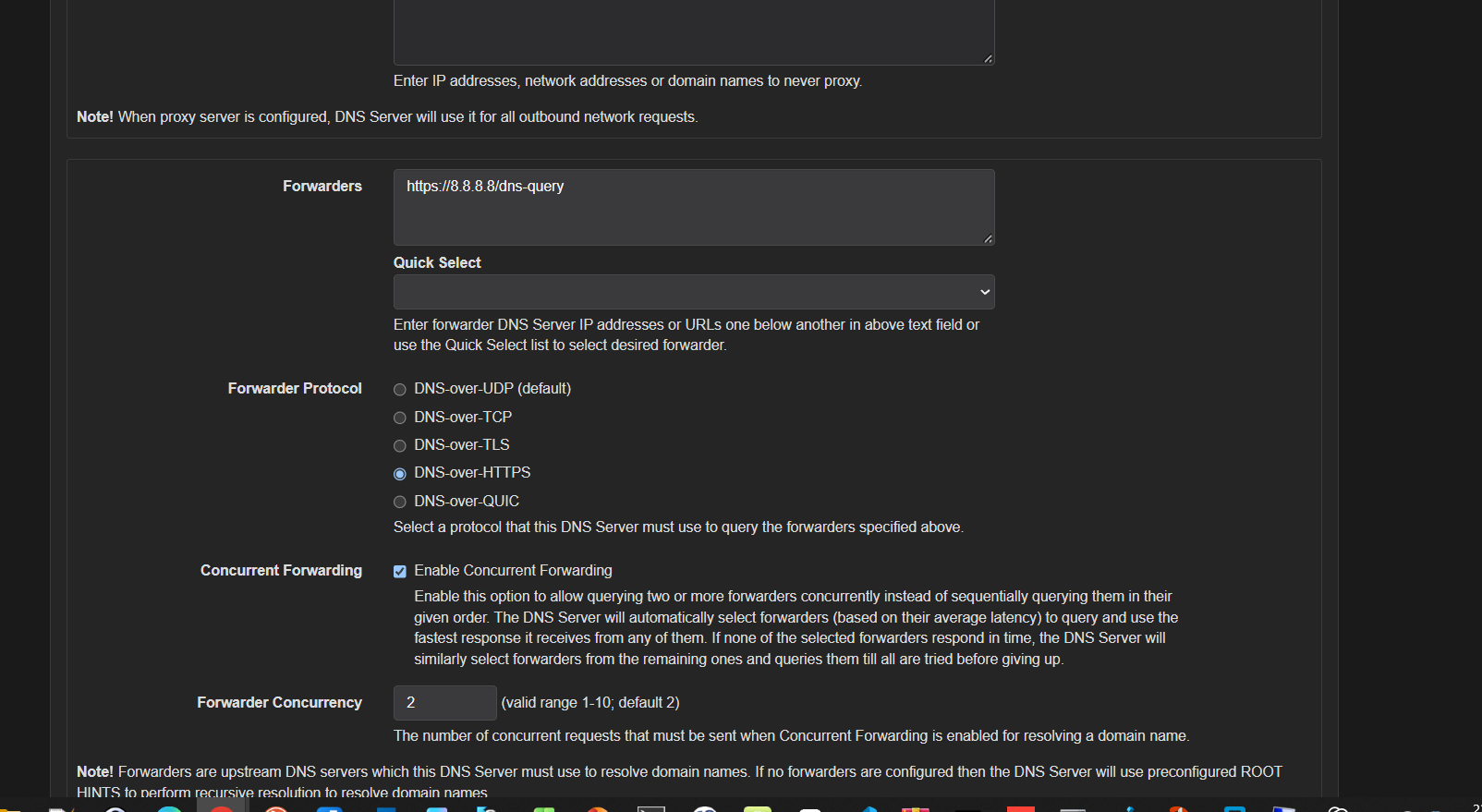
Operational recommendations:
- Configure at least two upstream resolvers so a single provider failure does not stop resolution.
- Use DNS-over-HTTPS or DNS-over-TLS, as appropriate for your network policy.
- Concurrent Forwarding with two upstreams improves latency resilience, at the cost of more upstream queries.
- Evaluate upstream providers against regulation, latency, logging policy, and DNSSEC behavior.
Technitium supports UDP, TCP, TLS, and HTTPS for upstream forwarding, with QUIC-based options in current releases. Encrypted transport reduces resolver-to-upstream observability; it does not itself make the entire recursive DNS path private. Official feature overview
DNSSEC: is the answer correct, not merely fast?
DNSSEC adds a digital-signature chain to DNS data. A validating resolver checks signatures from the root down; a broken chain or forged answer is not trusted. It is an important control against cache poisoning and DNS response manipulation.
The RRSIGsMissing; Attack detected! entry shown in the cache is a useful reminder that DNSSEC validation is not a checkbox to enable and forget. Investigate validation failures: they can be caused by a broken domain configuration, time drift, a problematic upstream resolver, or an in-path device altering DNS traffic.
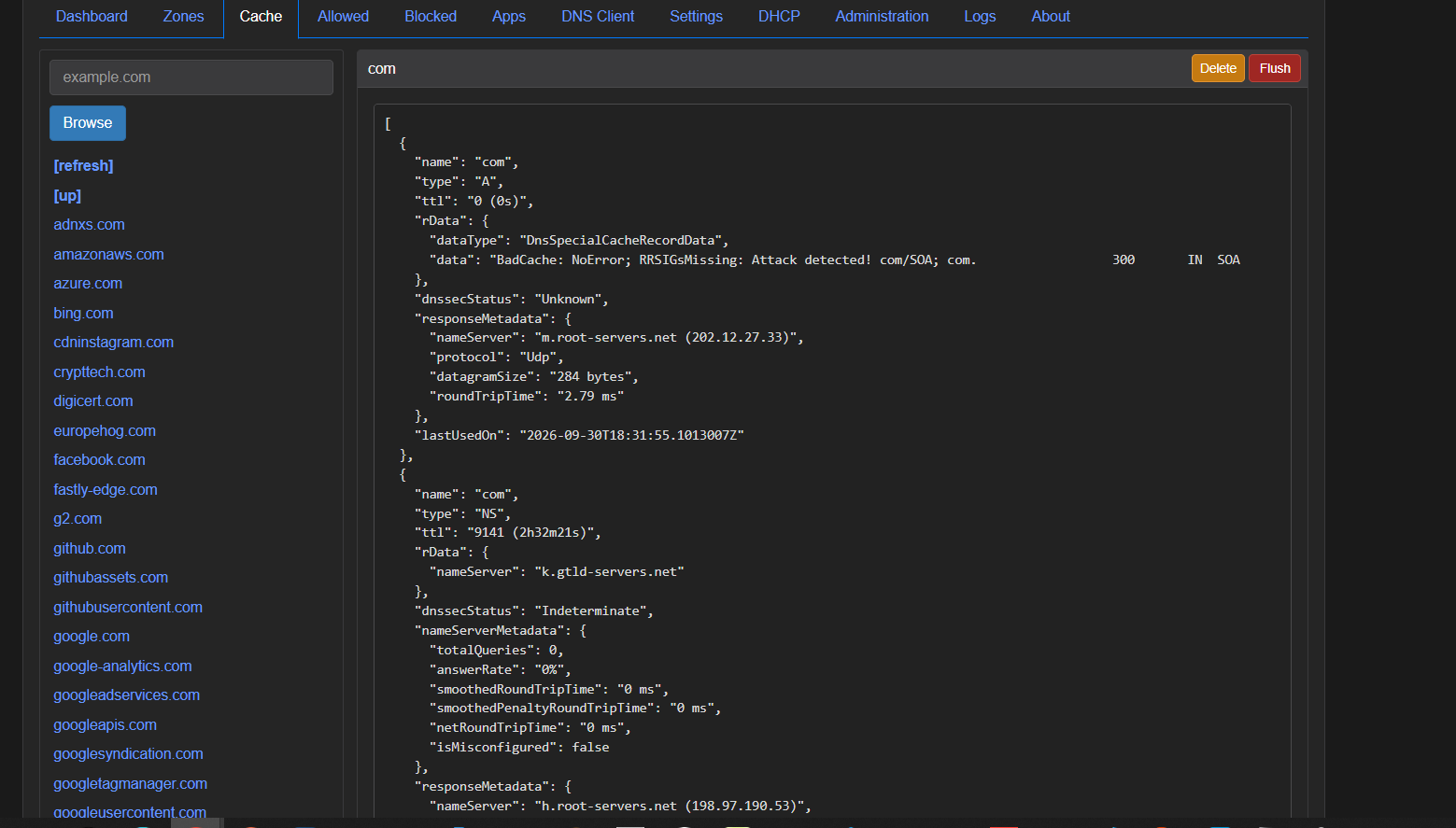
Do not disable validation merely to make the symptom disappear. Check these first:
dig @SERVER_IP dnssec-failed.org A +dnssec
dig @SERVER_IP cloudflare.com A +dnssec
timedatectl status
docker compose logs --tail=200 dns-server
Failure is expected for dnssec-failed.org, a deliberately broken DNSSEC domain. A known properly signed domain should resolve. If behavior differs, investigate upstream configuration and time synchronization first.
Blocking policy: NXDOMAIN or a custom block page?
In Settings → Blocking, enabling blocking applies the Blocked Zone and Block List Zone rules. The configuration shown uses Custom Address to direct blocked domains to the local IP that serves a block page.
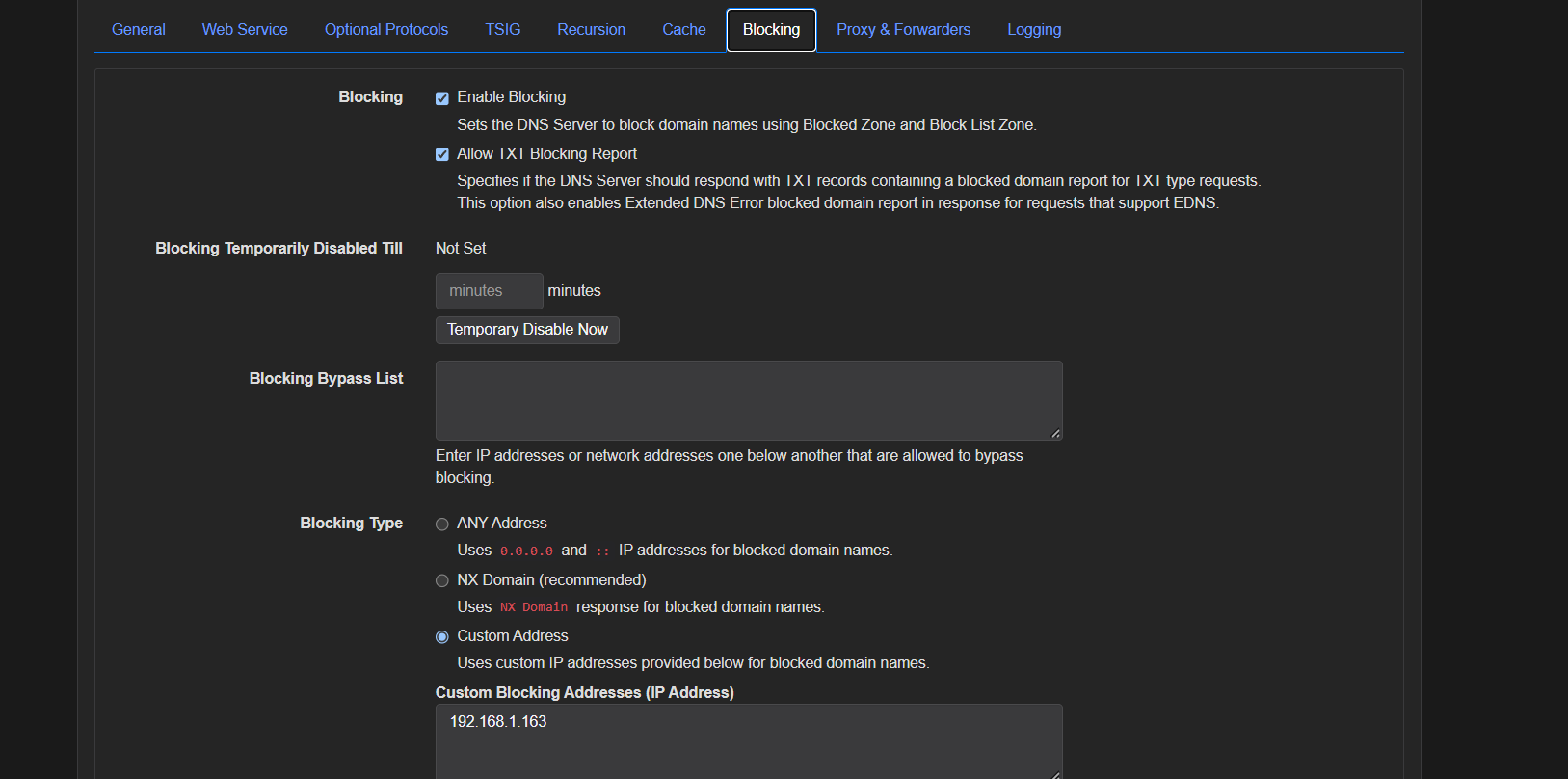
Choose deliberately between these approaches:
| Method | Benefit | Risk / use case |
|---|---|---|
| NXDOMAIN | Simple, secure default; no content is served | The user receives no direct explanation |
| Custom Address + Block Page | Transparent feedback and fewer support calls | HTTPS certificates and page availability require management |
My enterprise default is NXDOMAIN. I introduce Custom Address only when policy transparency and user experience justify it. Carelessly deployed certificate exceptions or broad TLS interception create additional attack surface.
Configuring the Block Page app
Install and configure the application under Apps → Block Page. It uses the DNS Server’s built-in web service to present a page to end users. Enter the LAN address of this web service as the Custom Address.
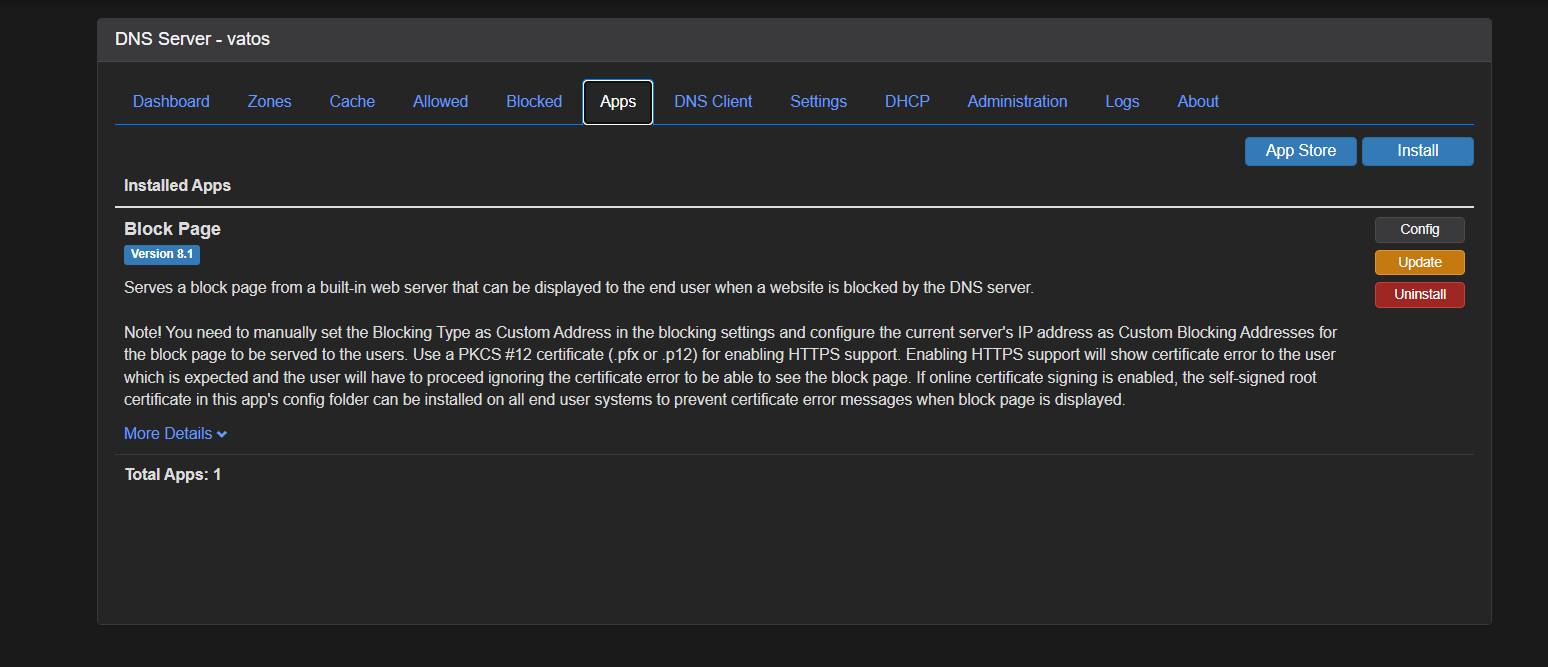
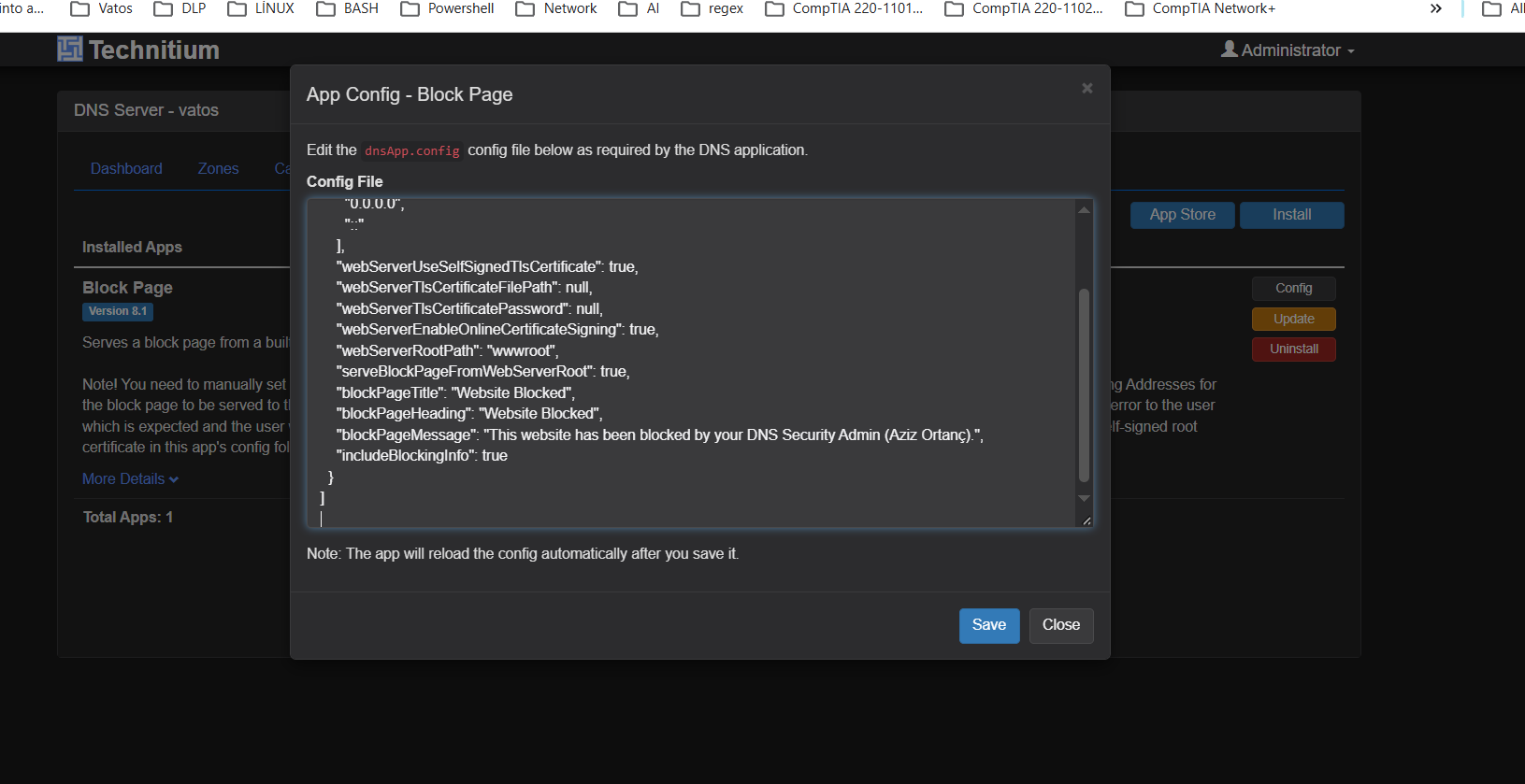
Customize the title, message, and technical detail to match the organization’s language. The example exposes blocking details for technical troubleshooting. Do not expose usernames, source IP addresses, group memberships, or sensitive policy classifications on shared devices.
The user then sees why access was denied, the affected domain, and where to request help when appropriate:
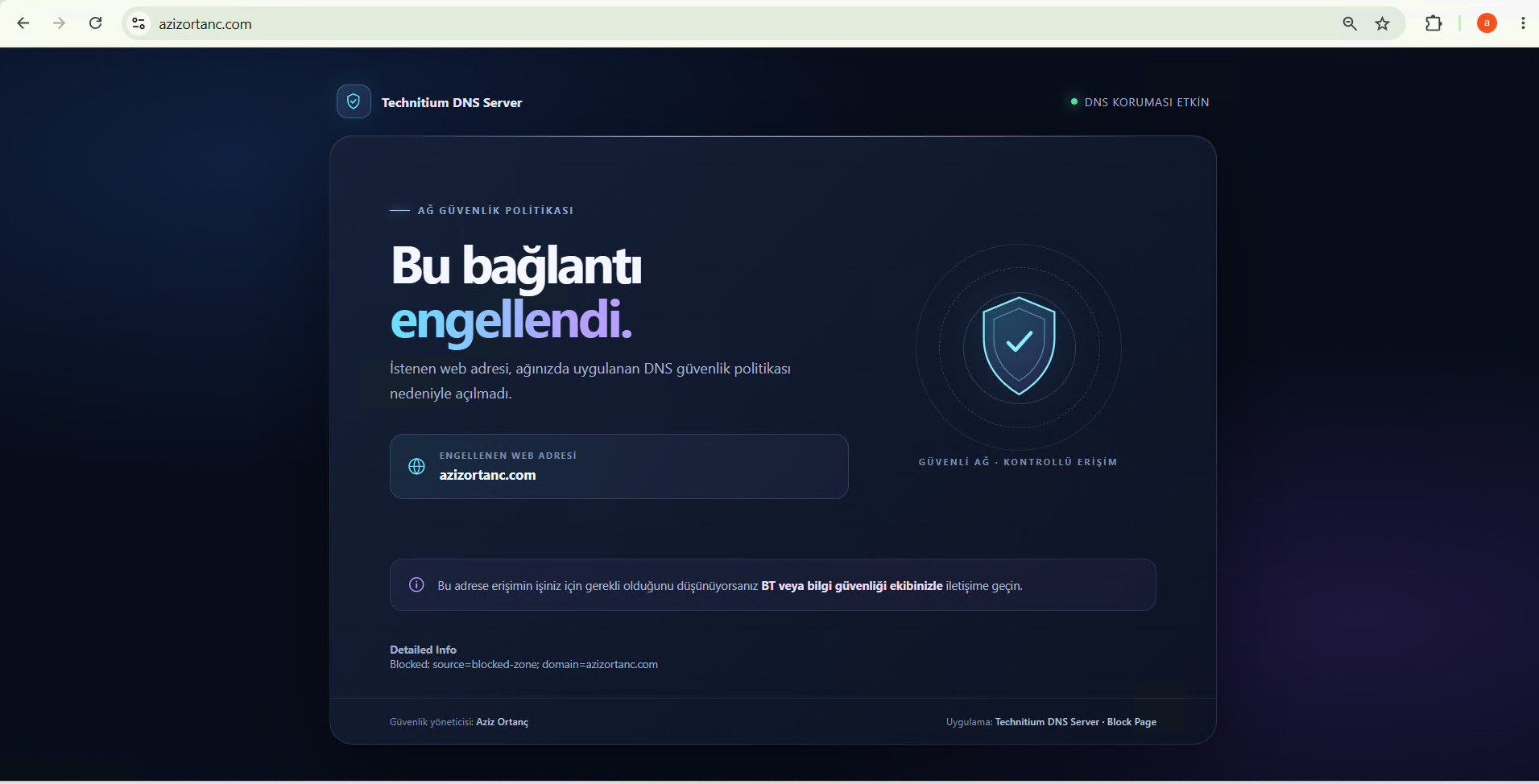
HTTPS note: Browsers generally try to establish HTTPS for a blocked name. To serve a block page over HTTPS without warnings, clients must trust a valid certificate chain. Using a self-signed certificate without distributing trust causes certificate warnings. Do not consider asking users to ignore them a solution: use a managed PKI design for managed endpoints, or begin with NXDOMAIN for unmanaged clients.
Ready-to-use sample HTML
Download the standalone template here: Technitium Block Page sample HTML. Customize its colors, organization name, support message, and footer, then place it as index.html in the Block Page app’s web root.
The page displays a domain when the redirect mechanism supplies ?domain=example.com; otherwise it uses a safe generic message. Do not display source IP addresses, usernames, group membership, or sensitive policy details to end users.
List management: block, observe, and roll back
Manage block lists as you would security-product signatures. Adding a list is easy; keeping it current and reversing false positives with an audit trail is the difficult part.
Recommended process:
- Test a list first with an observation group or a limited VLAN.
- Record its source, purpose, date added, and owning team.
- Add essential business applications to Allowed only with a documented reason.
- Keep exceptions time-bound; permanent allow lists become policy debt.
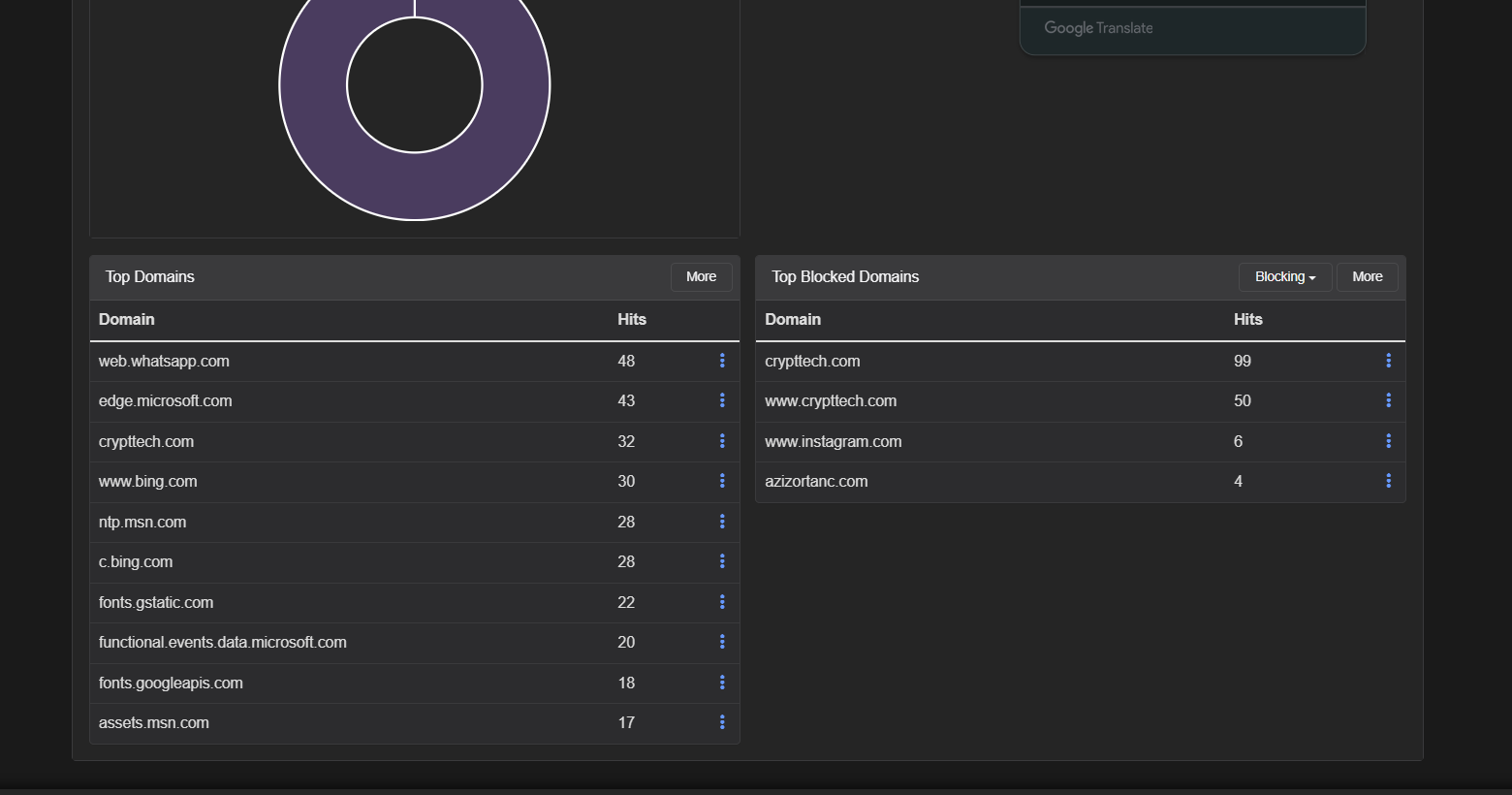
- Monitor top blocked domains and support cases after an update.
The dashboard’s blocked-domain view makes policy outcomes and likely false positives visible. A sudden volume of blocked requests to a business SaaS domain can be caught before it becomes an access incident.
Feeding SGB malicious-domain intelligence into Technitium
Türkiye’s Cyber Security Presidency publishes malicious domain, URL, IPv4, and IPv6 indicators through its Malicious Connections API. At the DNS layer, domain indicators are the appropriate target. IP indicators usually belong in a firewall or IPS, while a URL that is malicious only at a particular path may be better handled by a web proxy or WAF. Automatically blocking the host of every URL can over-block a legitimate but compromised site.
For that reason, the companion script defaults to downloading only domain records published during the last 30 days. It normalizes them, removes duplicates, and creates a one-domain-per-line file suitable for a Technitium block-list source:
Download the SGB → Technitium domain synchronization script
Step 1 — Persistent directory and permissions
Do not leave the script in the download directory. /opt/technitium-sgb is dedicated to this integration; 755 lets the DNS service traverse the path and 750 prevents broad modification or execution of the script.
sudo install -d -m 755 /opt/technitium-sgb
sudo install -m 750 sync-sgb-domains.py /opt/technitium-sgb/sync-sgb-domains.py
sudo ls -ld /opt/technitium-sgb
sudo ls -l /opt/technitium-sgb/sync-sgb-domains.py
Step 2 — Small test first, then the production list
Start with one day of data to prove API access and file permissions. The script processes only domain records and deliberately excludes URL/IP indicators from the DNS list.
sudo /usr/bin/python3 /opt/technitium-sgb/sync-sgb-domains.py --days 1 --output /tmp/sgb-domains-test.txt
wc -l /tmp/sgb-domains-test.txt
head -20 /tmp/sgb-domains-test.txt

# Production list: last 30 days
sudo /usr/bin/python3 /opt/technitium-sgb/sync-sgb-domains.py --days 30 --output /opt/technitium-sgb/sgb-domains.txt
sudo chmod 644 /opt/technitium-sgb/sgb-domains.txt
sudo ls -lh /opt/technitium-sgb/sgb-domains.txt
The initial # lines are comments and metadata, not domain entries. If no valid domains are produced, the script atomically preserves the old file so an empty feed cannot remove the effective policy.
Step 3 — Configure Technitium to use the local source
For a native Linux installation, no additional web server is needed. Add the following URI under Settings → Blocking → Allow / Block List URLs, save it, and use Update Now to trigger the initial load:
file:///opt/technitium-sgb/sgb-domains.txt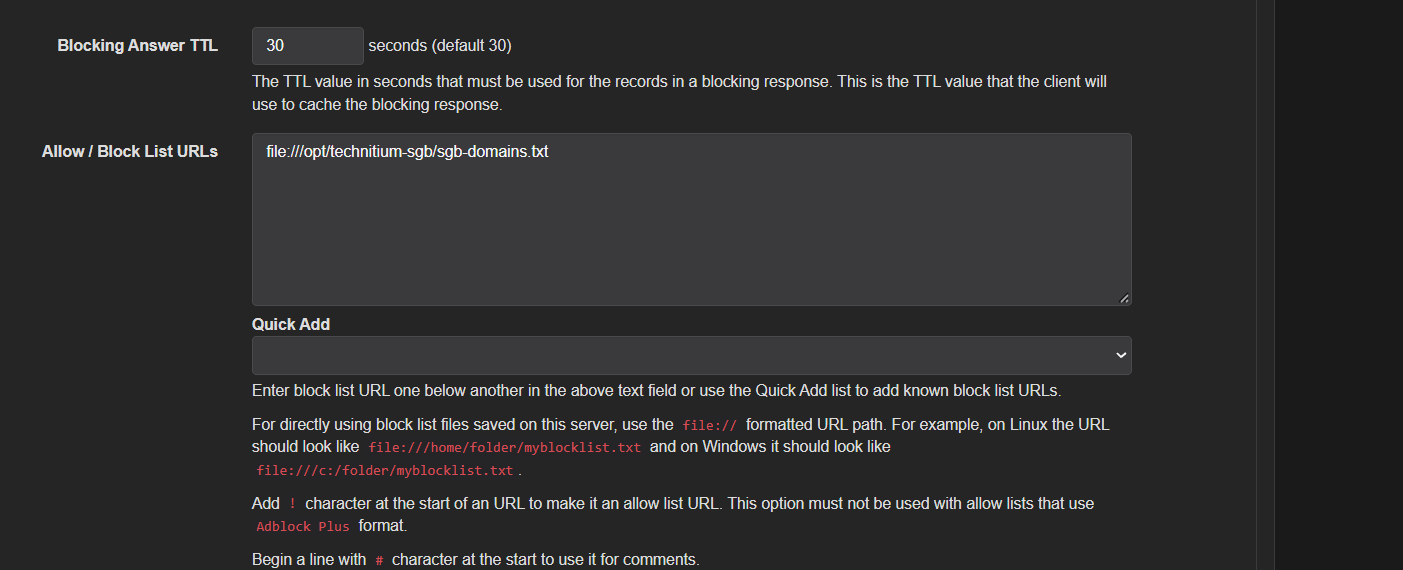
The file:/// prefix is mandatory: this is a local-file URI, not an HTTP address. Use three slashes—file:///opt/... is correct and file://opt/... is wrong. Confirm Enable Blocking is active and choose a reasonable Block List Update Interval, such as 24 hours.
This setting was validated in a live native Linux deployment: Technitium loaded the local file and blocked a listed-domain query. An empty Blocked page is expected; it displays manually created Blocked Zones. URL-sourced entries are evaluated separately in the Block List Zone and are not listed one by one there.
Step 4 — Verify the blocking result
Query one domain from the list directly against the local resolver. Depending on Blocking Type, expect NXDOMAIN, 0.0.0.0 / ::, or the Custom Address IP. A real public IP means the list did not load or blocking is off.
dig @127.0.0.1 100000101001111.duckdns.org A +noall +answer +commentsIf this does not return the expected response, run Update Now in the UI again, then check file access and service logs:
ls -ld /opt /opt/technitium-sgb
ls -l /opt/technitium-sgb/sgb-domains.txt
journalctl -u dns-server -n 150 --no-pager | grep -iE "block|list|file|error"
If dns-server has another unit name, locate it with systemctl list-units --type=service | grep -i dns. The file must be at least 644, and parent directories must be traversable by the service account.
Step 5 — Schedule daily updates
A daily refresh can look like this:
17 03 * * * /usr/bin/python3 /opt/technitium-sgb/sync-sgb-domains.py --days 30 --output /opt/technitium-sgb/sgb-domains.txt >> /var/log/sgb-dns-sync.log 2>&1Add this through root’s crontab -e. Cron runs the parser at 03:17; Technitium rereads the same file on its Block List Update Interval. Verify the first scheduled update with:
tail -n 100 /var/log/sgb-dns-sync.log
crontab -l
--full fetches full history but increases initial runtime and false-positive impact. --include-url-hosts deliberately requires explicit opt-in.
Validation and alternative delivery
Test the initial load with a domain from the generated list. The expected result is NXDOMAIN or the configured Custom Address, depending on the Blocking Type.
dig @127.0.0.1 100000101001111.duckdns.org A +noall +answer +commentsFor Docker or a remotely hosted feed, publish the file over HTTPS instead. The Technitium feed-registration script can add that remote HTTPS source to existing Block List URLs using an API token.
Source-management note: The official API schema can change. Before production use, approve source access, terms of use, refresh frequency, and the false-positive rollback process through change management. Do not depend on the retired
url-list.txtflow; the current source is the API. SGB Malicious Connections
Operations: extracting signal from the dashboard
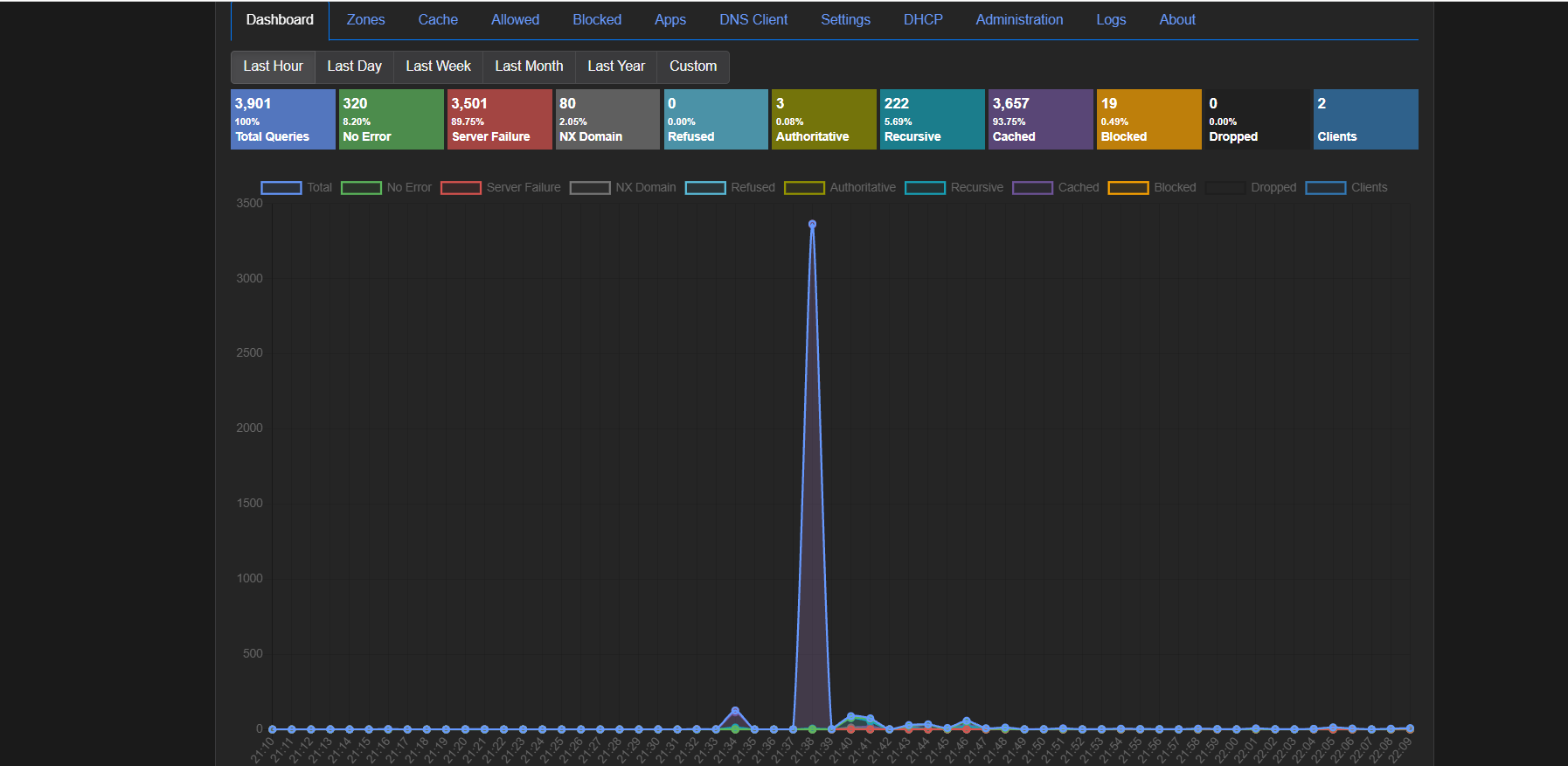
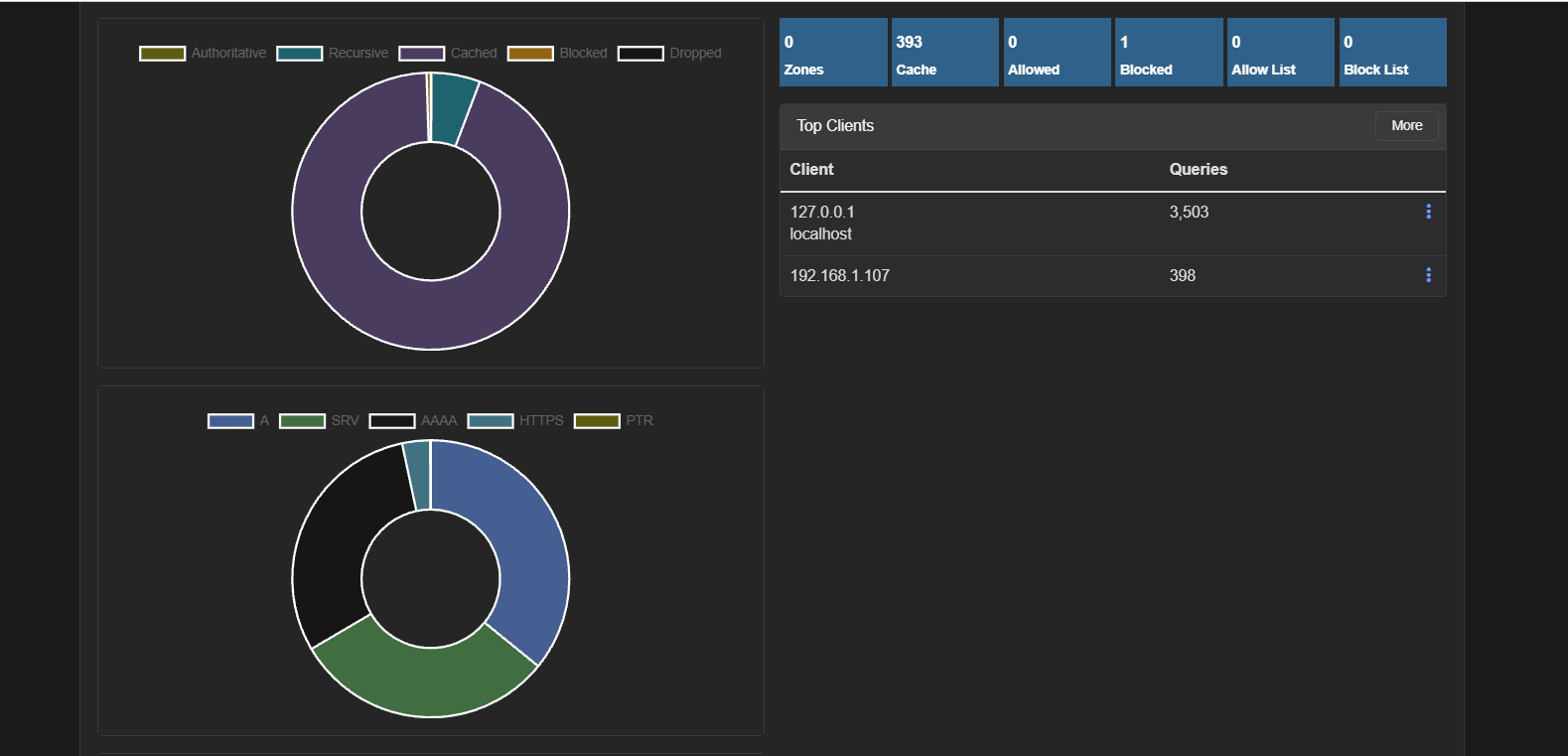
The DNS dashboard is not merely visual telemetry; it is the start of anomaly investigation. Review these metrics together:
- Total queries / client: A sharp increase can indicate a misconfigured agent or DNS-based beaconing.
- NXDOMAIN and server failure: These are early signals for a new policy, broken upstream, or a bad zone change.
- Cache hit ratio: A low value can relate to short TTLs or repeated bad requests; it is not a fault by itself.
- Blocked ratio: An unexpected rise should be correlated first with a list change, then with the client and domain involved.
Test plan: what must be proven before rollout?
Putting DNS control into service means more than confirming that a domain resolves. This minimum test matrix covers both security and service continuity.
| Test | Expected outcome | Evidence |
|---|---|---|
| Normal resolution | A known domain resolves to the correct address | dig / Resolve-DnsName output |
| TCP fallback | DNS over TCP works for larger answers | dig +tcp result |
| DNSSEC positive | A signed domain resolves | +dnssec output and cache/dashboard record |
| DNSSEC negative | A deliberately broken signed domain is rejected | dnssec-failed.org fails |
| Blocking | A test domain is denied | NXDOMAIN or Block Page |
| Allowed exception | An approved domain bypasses a block list | Resolution after adding Allowed entry |
| Upstream outage | Another upstream continues resolving | Log and response-time evidence |
| Client visibility | The actual source client is shown | Dashboard Top Clients |
For blocking tests, use a controlled test zone such as test-block.example rather than arbitrarily blocking a popular production domain. Include removal of the temporary rule in the change record.
Common issues and practical resolution paths
1. Clients cannot resolve names; the dashboard is empty
Confirm that the client actually uses the intended resolver IP; its DHCP lease may not have renewed. Then inspect UDP/TCP 53 port binding, firewall policy, and conflicts with another service. On Linux, systemd-resolved may conflict; on Windows, a local DNS service or endpoint security product can do the same.
2. All dashboard queries originate from one IP
This usually happens when the router proxies DNS requests for clients. When it forwards them from its own address, Technitium cannot identify the true originator. Give clients the Technitium address directly through DHCP, or use a DNS relay mode that preserves source information. Client-level visibility is essential for investigation.
3. The DoH forwarder fails or adds latency
Verify that the endpoint is an official provider URL, system time is correct, and outbound TCP/443 is allowed. Do not disable certificate validation: inspect the certificate name, proxy trust chain, and any TLS inspection policy. Compare behavior with a second upstream resolver.
4. A certificate warning appears instead of the expected block page
This is expected in many cases: the browser expects the blocked domain’s certificate, while the block page has a different certificate. The answer is not to grant arbitrary certificate exceptions. Use an appropriate PKI design for managed endpoints or select NXDOMAIN for unmanaged devices.
5. A legitimate application is blocked
Use dashboard or logs to confirm the exact domain and the list responsible. Then add the narrowest possible Allowed exception with a reason and review date. Removing an entire list for one false positive is an overcorrection.
6. DNSSEC validation fails unexpectedly
Investigate NTP synchronization, upstream behavior, in-path DNS-modifying devices, and the domain’s signature chain. Document the cause before flushing cache; cache clearing is a controlled diagnostic action, not a fix.
Hardening checklist
- Expose the administrative interface only to the management network; never publish it directly to the internet.
- Use a long, unique administrator password and MFA where supported.
- Store encrypted configuration and zone backups away from the DNS host.
- Test updates in a lab first and review release notes.
- Limit query-log retention to the operational need and restrict access by role.
- Distribute DNS through DHCP; address policy bypass with firewall controls.
- Manage upstream, block-list, and allow-list changes through change records.
- Use at least two upstream resolvers and plan a second DNS server for availability.
Closing perspective
DNS security is a quiet control layer that becomes exceptionally valuable during an incident. Technitium DNS Server combines a recursive resolver, cache, DNSSEC validation, encrypted forwarders, list-based policy, an application ecosystem, and operational metrics in one open-source platform. That is a strong foundation from a small lab through a mid-sized enterprise network.
The useful metric is not “how many domains did we block?” It is how early we stopped risk without breaking legitimate traffic, how quickly we explained the decision, and how safely we could reverse it when necessary.
Prepared by: Aziz Ortanç
Senior Cyber Security Engineer